Over the past few years, the popularity of streaming TV has increased, and it has introduced more services and options for the users. In 2020, companies Google and Roku introduced affordable and stunning features-equipped steaming bars and devices. Amazon also joined the trail, and currently, the company has two Fire TV Sticks, i.e., Fire Stick TV Lite and a Fire TV Stick. The latter, Fire TV Stick, is the most expensive streaming device by Amazon, yet it is one affordable product.
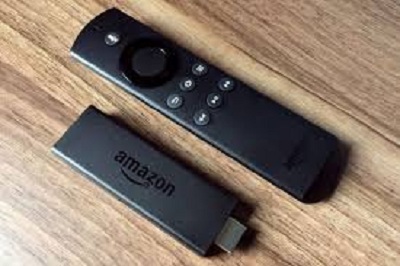
Comparatively, the updated Fire TV Stick is two times faster and efficient than its predecessor device. The updated Stick’s remote also has buttons for volume control and power so that you can ditch your TV remote for the basic functions. You might want to get the Fire TV Stick 4K for $50, but you can get impressive and almost similar features in the Fire TV Stick and save $10 as it costs $40 only. The $40 Fire TV Stick has integration with the Echo devices and a good range of apps (excluding Peacock), and a smooth user interface.
Fire TV Stick: Additional Details
Fire TV Stick is a USB stick-sized device that can be connected to the HDMI port of a TV. Using it, you can convert your standard TV into smart TV and stream content from the internet and apps like Netflix, HBO, etc., over your home’s Wi-Fi connection. In addition to this device, if you get the Amazon Prime subscription, your Stick TV experience will enhance.
Examining the physical changes, one might not notice any changes in the overall look of the remote. But with the latest and updated Fire TV Stick, the company has enabled the users to control the volume. But it lacks support for remote shortcuts of the Netflix, Hulu, etc., video-on-demand subscription services. You can easily set up the remote within 30 seconds and control the receiver. This streaming stick also offers HDR display, but only a limited number of TVs can support it. If you use a 4K display TV, then it is better to invest in a 4K streaming stick.
The Fire TV Stick comes with a power adapter, and it is highly recommended to use that adapter for an enhanced and smooth experience. You can still use the USB ports of your TV to turn on the device, but the unit might behave differently.
Streaming Services
Amazon is getting better in their game and is offering improved support for video-on-demand services and content. Using the Fire TV Stick, you can access almost every significant streaming app on your TV, including Amazon Prime, Netflix, Pluto TV, HBO Max, Sling TV, Hulu, Spotify, Pandora, Crackle, and more. However, Amazon still doesn’t have support for NBC’s Peacock.
Overall Review
The Fire TV Stick works pretty much similar to the Fire TV Lite; the only significant difference is in the remote of our device. It offers useful features, support for voice commands, and offers speedy responses. You can easily use it for Alexa searches using the microphone button and receive relevant responses. It offers a content-focused approach and focuses on the titles on the home page. If you are more focused on the content, you should go ahead with the Fire TV Stick.
Amazon is now offering an improved and redesigned main menu and browsing experience along with a section dedicated to Alexa Explore. The sound and picture quality is very similar to the Fire Stick Lite, but the audio is better in the Fire TV Stick as it has Atmos audio support.
Final Verdict
If you don’t want to invest in anything more than $40, then you should move ahead with the Fire TV Stick, but its home page might be a little overwhelming for some users. For a simplistic home page, you might want to opt for a Roku streaming stick. If you already own a Fire TV Stick, you can skip purchasing the updated Fire TV Stick.
Source :- https://officecom-setup.m2activate.co.uk/review-updated-amazon-fire-tv-stick/
Daisy Martin is a qualified IT engineer by education. After working in the IT sector for a decade, she began writing about it two years ago. She loves to write about emerging technology like office.com/setup .


