Showing posts with label Apple TV. Show all posts

Sunday, February 9, 2020

How to Install tvOS 13.4 Beta Version 1 on Apple TV

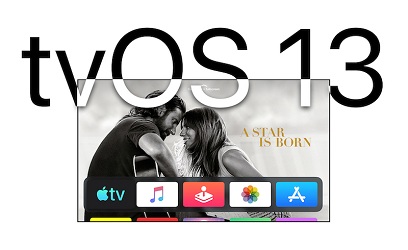
Apple solely releases the software and develop the operating system of the devices. Every device that Apple makes has its own operating system be it iPhone, iPad, and Mac or Apple TV device. The operating system of the iPhone or iPad is way different than Apple TV. Installing tvOS in Apple TV is different and much trickier than iPadOS or macOS. Apple has released a new tvOS 13 which is currently a beta version. It’s a developer thing, but a consumer can also use it by installing it because there is no restriction.


The current generation of Apple TV is the 4th Generation, and it is excessive complex than any of the other devices that you used. Beta versions are mostly for the developers because these beta versions released to check the OS and if there any further thing should be added then they contact with the server and respond. You cannot install beta version like other updates, and there is a process that you should follow. Here is how to install tvOS 13.4 beta version 1 on Apple TV:
Install tvOS beta version Wirelessly
For installing the tvOS beta version, you will require a Mac device, the latest edition of Xcode and Apple Configuration. With the help these things, you can easily install tvOS beta version Configuration Profile total wirelessly.
  • Go on developer.apple.com/ in Mac device.
  • Tap on “Discover”
  • Tap one of the “tvOS.”
  • Now you need to put your developer “Username” & “Password” for login
  • You need to keep your profile save on the desktop. When the screen comes down then tap on the blue “Download” icon, which is “tvOS 13 beta” Configuration Profile.
  • Install “Apple Configuration app” from Mac App Store.
  • Now connect Apple TV (4th Generation) device with “AC power.”
  • Connect both Mac and Apple TV 4K with the same wireless network.
  • Run “Xcode” in your Mac. Remember that you are using the latest version.
  • Tap on the “Window” in Menu Bar.
  • Choose “Devices and Simulators.”
  • Go to “Settings” on Apple TV.
  • Choose “Remotes and Devices.”
  • Choose “Remote app and Devices.”
  • In the Xcode, choose “Apple TV” at the time it appears at the left column below discovered.
  • Go on “Apple Configurator” on Mac device.
  • Select “Apple TV” at the Apple Configurator.
  • Now the final thing that you have to do is Drag “tvOS 13 Configuration Profile” from Desktop to Apple TV sign at Apple Configurator. After this process, Apple TV will automatically be configured for tvOS 13.
  • After all these steps your Apple TV will start detecting the new tvOS, you need to download and install it simply. You only need to download profile, Apple Configurator and then you need to drag profile into the Apple TV.
    Install tvOS beta Restore the Image from USB-C for 4th Generation Apple TV
    In 4th Generation Apple TV, you can install restore the image by using a USB-C cable. The process is straightforward, and the steps are following.
  • Write developer.apple.com/ on the Mac device.
  • Tap on ‘Discover.”
  • Select “tvOS.”
  • Write your developer “Username & Password” for logging in.
  • Tap on “tvOS 13 restore image” for “Apple TV (4th Generation).”
  • Select “Applications” at the above of the page.
  • Tap on the blue “Download” sign to the side of “Xcode 10.”
  • Install latest “Xcode 11” on the Mac.
  • Connect the “AC power” to your Apple TV (4th Generation)
  • Connect your “Mac” using “USB-C” cable and connect with Apple TV (4th Generation).
  • Run the “iTunes.”
  • Choose “Apple TV” when you see it in “iTunes.”
  • Hold the “Option” key and tap on “Check for Updates.”
  • Now the final step is to click on “tvOS 13” beta that you downloaded already.
  • After following all these steps, your Apple TV will be ready to go.

    Source :- https://karenmintonblogexpert.wordpress.com/2020/02/10/how-to-install-tvos-13-4-beta-version-1-on-apple-tv/

    Tuesday, February 4, 2020

    How to Install tvOS 13.3.1 beta 2 on Apple TV

    Apple has released the beta 2 of tvOS, and it is exclusively for the developers. Apple routinely introduces new features and updates with betas, and beta 2 is also launched with many new features. However, it is not an easy task to download and install tvOS 13.3.1 beta 2 on 4th generation Apple TV or Apple TV 4K. So, if you are a developer and finding trouble in installing beta 2, then you can follow the instructions given below in the steps:-


    If you have a previous tvOS beta a, then you can go to the option of System and then tap on Software updates to install beta 2. But, if you are willing to test the tvOS13.3.1 beta 2, then follow the below-given steps to download it conveniently:-
    Installing tvOS beta over-the-air
    You should have the availability of a Mac and Apple configurator along with the newest version of Xcode if you want to connect the tvOS beta configuration wirelessly.
    • Now, go the Mac you have and then visit developer.apple.com/.
    • Further, you have to tap on “Discover” and then tap on either on the tvOS.
    • In the next step, you have to enter the “Username” of your developer and then enter the “Password” required for login.
    • Now, Keep scrolling and then tap on the button of ” Download” appearing in blue color at the right side of the profile of “tvOS 13 beta configuration”. Don’t forget to go to “save as” to save the pattern on the desktop of your Mac.
    • In the further step, go to the app store of your Mac and start installing the Apple Configurator app.
    • Then, Don’t forget to connect Apple TV  or Apple 4K TV to AC power and then connect the Mac you are using and the Apple TV  with the same network of wireless.
    • Further, visit “Xcode” to make yourself sure that the latest version is running and next tap on Window.
    • Again, tap on “Devices and Simulators” and then go to the “Settings” of your Apple TV and open it. Now, choose “Remote and Devices” and then again choose “Remote App and Devices.”
    • Go to Xcode and choose Apple TV  and put the Code appeared on the Apple TV you are using to pair up the both.
    • Now, Tap on “Apple Configurator”  on the Mac you have and then tap on the option of “Apple TV” that appeared in the configurator of Apple Tv.
    • In the final step, you have to drag the profile of tvOS 13 configurations from the desktop you have to the icon of Apple TV that appeared in Apple Configurator. Finally, tvOS 13 will be installed.
    Installing tvOS beta restore image over USB-C
    This installation process is only applicable to the Apple TV  of the 4th generation and can be done by using a cable of USB-C.
    • Visit developer.apple.com/ on the Mac you have and tap on “Discover.”
    • Tap on either on the tvOS and then enter the Password” and  “Username” of the developer.
    • Further, tap on the “tvOS13 restore image” and then tap on ” Applications”  when appeared on the page.
    • Tap on the button of  “Download” appeared in blue at  Xcode 10’s right and started installing Xcode 11 on the Mac you have.
    • Connect your 4th generation Apple TV to AC power and then connect it to the” Mac” with the help of cable of USB-C.
    • Now, go to “iTunes” and launch it along with selecting ” Apple TV” after appeared in the option of “iTunes.”
    • Tap on the option of “Checking for Updates” while holding down the key “Option.”
    • In the final step, keep browsing and tap on the tvOS 13 beta installed previous steps.

    Tuesday, August 20, 2019

    How to Install tvOS 13 Public Beta 6 on Your Apple TV?

    If you are looking for a tutorial to help you with downloading and installing tvOS 13 beta 6 to your Apple TV, then you have come to the right place. Currently, we all have the chance to taste Apple’s new OS for its TV streaming devices. tvOS 13 Public Beta 6 is available for free and only requires an Apple account. In order to get tvOS 13 Public Beta 6 on your Apple TV, you need to sign up for the Beta Software program by Apple. tvOS 13 is coming up with many new features, look and feel.
    apple tv.jpg
    If you want to give your Apple TV a new look and feel, then trying it out is a good idea. However, this Beta is not a finalized software, so keep in mind that bugs will be there. If you are afraid of losing the original ROM of Apple TV, then this article is not for you. Without wasting any more time, let’s get started.
    tvOS 13 Public Beta Release Date
    August 15, 2019, Apple released its sixth public Beta for tvOS 13. If you have installed the tvOS Beta before in your device, then you don’t need to sign up again. Go to your Settings> System> Software Update and after that download the sixth public Beta. If you are trying tvOS 13 Beta for the first time, then you need to register first.
    Signing Up for Apple’s Beta Program
    It is an entirely free process and only requires a few details of your Apple account. Here’s how to sign up for tvOS 13 beta:
    1.  Open your browser and then go to the beta.apple.com.nofollow link.
    2.  Press the Sign Up button to get started.
    3.  Now provide your Apple credentials such as ID and password.
    4.  After that, hit the Sign In.
    5.  Hit the Accept button after reading the terms and conditions of Apple beta software.
    Now you are successfully registered with the Apple beta program, and the next step is to enroll yourself for Apple’s tvOS 13 public beta 6.
    Enrolling for tvOS 13 Public Beta 6
    The enrollment for the tvOS 13 beta is almost the same as signing up for the beta program. Here’s how to enroll for the tvOS 13 public beta:
    1.  Navigate Settings on your device.
    2.  Go to Accounts.
    3.  After that, you can choose any apps from the App Store, iTunes, and iCloud.
    4.  Now you will have to sign in using your Apple ID and password. Same as you did in the previous step.
    5.  On your Apple TV remote, hit the Menu key.
    6.  Press the same Menu key on your Apple remote one more time.
    7.  Now go to “System.”
    8.  Head to Software Updates.
    9.  Click on the Get Public Beta Updates.
    10. Now to confirm press the Get Public Beta Updates option.
    11. After that hit the Agree button.
    Now the tvOS beta update is activated and you can download and install the tvOS 13 to your device.
    How to Download and Install the tvOS 13 Public Beta 6?
    1.  Head to Settings on your device.
    2.  Go to System and then tap on Software Updates.
    3.  Hit the Update Software button.
    4.  Press on download and install option.
    Now wait until the update finishes. Don’t interfere or use your device between the update process.
    Kellie Minton  arrived on the cyber security scene in the early 2000s when virus and malware were still new and slowly evolving. Her longtime affair with writing with an interest in the cybersecurity industry, combined with her IT degree, has contributed to experience several aspects of security suite industry such as blogging at norton.com/setup.

    Wednesday, June 12, 2019

    Apple to Split Up iTunes on Mac Into Three Different Apps

    In the year 2001, Apple launched iTunes. It quickly became one of the most popular software across the globe. This music and media manager was well received by iOS users. However, things have taken a turn. Apple has announced that iTunes on Mac will soon be shut down. As a replacement, Apple will be introducing three distinct apps:
    apple itunes.jpg
    • Apple Music
    • Apple TV
    • Apple Podcasts
    However, what happens to all the songs and playlists in your iTunes? Do you like buying individual songs rather than paying a month-based subscription? Well, read on, and you will find the answers.
    In the Apple Worldwide Developers Conference, Apple unveiled macOs Catalina. They also announced the impending end of iTunes.
    Apple Music
    Apple Music is a subscription-based service which offers unlimited music. It has become quite popular amongst the masses. However, some people prefer buying individual songs from the iTunes Store.
    Apple TV
    In the era of cord cutting, Apple introduced its own digital content platform. This service is slated to release in a few months and will feature original shows and films.
    Apple Podcasts
    Given the rising popularity of podcasts, it is good that Apple is introducing a separate app for it. Merging it in iTunes would have made it too cluttered and messy.
    How will Apple go about it?
    Basically, iTunes is going to divide the responsibilities amongst different apps. Apple has posted a document that contains the answers for several questions regarding the new development.
    Songs imported to iTunes or bought from the iTunes Store shall automatically appear in the Apple Music application. Similarly, playlists, along with smart playlists, will also be automatically added to the app.
    The iTunes Store will not be shutting down; it will just get transformed into a tab that will be available in the Apple Music application on Mac.
    iTunes podcasts will also get moved to the brand-new Podcasts application, paired with the subscriptions. The audiobooks will be transferred to the upgraded Apple Books application on Mac.
    The films and show that were purchased or rented from the iTunes Store will also appear in the Apple TV application automatically.
    If you have iTunes credits, then they will get transferred as well.
    Final Words
    From the looks of it, it seems like splitting up iTunes into three different apps is a good move. Whether it is true or not, we will have to wait to find out.
    Read Next
    Kellie minton  arrived on the cyber security scene in the early 2000s when virus and malware were still new and slowly evolving. Her longtime affair with writing with an interest in the cybersecurity industry, combined with her IT degree, has contributed to experience several aspects of security suite industry such as blogging at norton.com/setup

    Thursday, March 28, 2019

    Best Games Confirmed for The Apple Arcade Services


    With the recent event organized by Apple, a vast range of new services was unveiled for Apple product users. But amongst all the upcoming services announced,  Apple users seemed to be enticed towards the Apple Arcade services.
    Apple Arcade is a new Subscription based service which allows users to access any available game in the Arcade Store for the monthly prize of $10. The subscribers of Apple Arcade services will be able to access and download all the games in the store on their macOS, Apple TV and iOS devices.  Moreover users can even play these game offline once downloaded.
    It is essential to not misunderstand these services with the other gaming services like Google Stadia as it is more resemblance towards the Xbox Game Pass services.  Apple’s new Arcade services are going to be accessible on all the Apple platforms and users can access multiple devices with a single Apple Account.
    Moreover, many game developers have already partnered with Apple and are set to introduce exclusive titles for Apple Arcade subscribers. Various well-known gaming studios like Devolver D Digital, Konami, Platinum Games, Sega, and Annapurna have developed some exclusive titles for Apple Arcade Services.
    In addition, the well known Hironobu Sakaguchi has revealed their upcoming game Fantasian which would be based on their prominent title Final Fantasy. Still, there are few games which would not be exclusively available on Apple as some of the gaming studios also feature their titles on other platforms.
    Subscribers of Apple Arcade would be able to access about 100 different titles as promised during the announcement event, but you can refer to some of the selected titles which would be best to experiences in the Apple Arcade.
    The Pathless
    Prepare to explore the fast dense forest cover with a massive landscape to explore as Annapurna Interactive has confirmed the development of The Pathless for Apple Arcade services. Players would be able to have a complete action-packed adventure in the vast forest cover with plenty of content to interact with.
    Team Sonic Racing
    Well, Sonic has a special place in every generation gamer, and Apple has indeed shown some love to the Sonic and his friends in their upcoming Arcade Services.  This title would be dedicated towards pro racing in which players can choose any character from the multiple options available.
    All the characters are from the original Sonic series, and in this title, players can even choose different vehicles and race tracks to have a thrilling experience. So this title is a must play option and every Apple Arcade Subscriber should look forward to playing this game.
    Fantasian
    From the developers of the Final Fantasy series, Hironobu Sakaguchi, a brand new title is developed exclusively for Apple Arcade users.  Fantasian is an addition to the Final Fantasy series and takes a lot of inspiration from its rich heritage. Still, Apple Arcade players will be able to play this title in Photographing 3D Dioramas which would enable them to become the part of the game itself.
    This game would be very fun to play as the legendary Sakaguchi himself announced that even they don’t have any idea of how many sets will they have to develop for the end of the upcoming title. It is clear that players will be able to enjoy ultra high-end gaming experience while playing this title.
    Beyond A Steel Sky
    A continuation to the Beneath a Steel Sky series a brand new title Beyond a Steel Sky is underway in its development phase which would also be the part of the upcoming games in Arcade Service.
    As the predecessor of Beyond a Steel Sky was launched in late 1994, it had the retro 2D point and click mechanics, but the latest incarnation of Beneath a Steel Sky a brand new 3D graphics have been included to the title.
    Moreover, it has been confirmed that the main protagonist of the Beneath a Steel Sky would also be featured in the upcoming new beyond a Steel Sky title. The main storyline for this upcoming title would be based on the benefits and cons of living in a society controlled by an Artificial Intelligence.
    Hot Lava
    Well, the phrase “Floor is Lava” is known by most individuals and based on that exact concept Klei Entertainment has developed a brand new title with literally turning the entire floor with lava. Players will be able to only stand on various items, and obstacles spread all across the place.
    Apple Arcade subscribers can look forward to playing this title when Apple launches the services and enjoy this title which is hit amongst the PC gamers on Steam.
     Karen Minton  is a creative person who has been writing blogs and articles about cyber security. She writes about the latest updates regarding mcafee.com/activate and how it can improve the work experience of users. Her articles have been published in many popular e-magazines, blogs and websites.

    McAfee Vs. Kaspersky Internet Security

      McAfee and Kaspersky are well-known names in the antivirus circle. It’s not wrong to say that they can be considered giants in the online ...