Showing posts with label apple watch. Show all posts

Monday, March 2, 2020

Oppo’s New Smartwatch Looks Awfully Similar to The Apple Watch

“The Apple Watch Rival By Oppo Looks Identical”
Oppo has unveiled the first look of its most awaited smartwatch and it will be named Oppo Watch. The new smartwatch introduced by Oppo is just looking similar to Apple Watch and the viewers will get more information about the watch in the Oppo FindX2 which is the launch event of the company and will be held on March 6. The company declared about the launching event of Oppo mobile on in a  tweet posted on Twitter. Meanwhile, a lot of speculations has been started cropping up regarding the newly introduced Smartwatch of Oppo. However, the people and the industry experts are still unknown about the features and the price of the newly introduced Smartwatch but there are many things about which the viewers are speculating about after going through the first image of the watch.


After getting the first look at the watch, it seems that the newly introduced watch can be used for making and receiving calls. If the viewers will look at the right side of the watch then they will find an option there to send a message to the person who is calling if the user is not able to respond to the call right now. Even though the body of the newly introduced Smartwatch of Oppo is looking just similar to Apple watch but the watches are slightly different in many things. If the points of differences will be taken into account, then it seems that unlike the Digital Crown of Apple watch there is no knob in the Oppo watch and instead of that the company has introduced a larger and second button just similar to the devices of Wear OS.
The band introduced in the Oppo watch is, however, a little different from that the users get in the Apple watch, but the Oppo has provided an enticing blue color on the left of the watch. Amidst all, the company and its spokesman is quite forthright regarding unveiling the design and other details of the upcoming product. For example, the company executive of Oppo Brain Shen has recently revealed that the upcoming product may be launched with features such as 3D glass and curved screen.
Another image of the upcoming watch has also been shared by the company executive Shen on Weibo on the 30th of January. In the newly shared images, it appears that the watch has a microphone along an alluring and interesting green line which is visible at the bottom of the button. The watch is looking much pretty and looking better at the top second button and the viewers could see more images of the watch which was shared on Weibo and appears to be leaked one. Meanwhile, the launch of the event will take place on 6th March and so the viewers would not have to wait too long for getting the final glimpses of the upcoming product. It is only the event launch party where the viewers could get the complete idea regarding the prices and the other features of the Oppo Smartwatch. However, the viewers are much eager and the industry experts are also willing to know what are the new innovations will be made by the company.
Kellie Minton is an avid technical blogger, a magazine contributor, a publisher of guides at mcafee.com/activate and a professional cyber security analyst. Through her writing, she aims to educate people about the dangers and threats lurking in the digital world.

Tuesday, December 24, 2019

How to Use Apple Watch Without iPhone?

It will not be wrong to say that an Apple Watch is the king of all smartwatches everywhere. However, there is no doubt recently launched Android-based smartwatches is placing a good challenge to it. Apple Watches are a self-reliable device, but few of the restriction are there when you start looking for something else than the Apple gadgets. Here is how to use Apple Watch without the iPhone.

You should prefer having the benefit of the net connectivity
Fortunately, each of the Apple smartwatches has the Wi-Fi connectivity option. Till the time you stay connected, you shall not face any issue. If you got your watch with cellular connectivity, then it shall let you stream a song, use Siri as well as get calls in one attempt.
Remember! You should not use the cellular connectivity on a regular basis because it quickly finishes the smartwatch’s battery.
By the help of the Wi-Fi connectivity, you shall be able to use all of the Wi-Fi supporting application. You shall perform functions of receiving and making calls. The best part is you shall be able to take benefit of the Walkie-Talkie application too.
Smartwatch connection to Wi-Fi
The foremost thing that you need to ensure is that your smartwatch is having watchOS 5 or newer. The update action needs to perform if your watch is not running that. After that, visit the Settings of your smartwatch and choose the Wi-Fi option. Observe that a list of present connections shall be presented before you whenever you click on that option.
Press the network you would wish using and give password if asked. The smartwatch doesn’t comprise a keyboard. The alphabet on Apple watch needs to be written by the fingers of yours. Tap ‘Join’.
If you don’t have the net
Apple smartwatch doesn’t lose its primary functions even whenever there is no internet. You shall be able to reach out each of the downloaded song as well as view the synchronized images. Side by side, users get the correct timing.
The unique feature is that Apple Pay does not need network connectivity. You shall be able to buy the time the smartwatch doesn’t have a net connection.
Can Apple smartwatch connect to Android smartphones?
Frankly speaking, it shall be not. The reason behind it can be that it is kind of a trick by the company to make consumers buy an iPhone for using an Apple smartwatch. Apple gadgets are linked to each other but exceptions do exist.
Kellie Minton is an avid technical blogger, a magazine contributor, a publisher of guides at mcafee.com/activate and a professional cyber security analyst. Through her writing, she aims to educate people about the dangers and threats lurking in the digital world.
Monday, November 4, 2019

How to Keep your Apple Watch Quiet

Going to watch a movie, headed for an important conference, or just want to meditate in peace? While Apple Watch is definitely amazing, constant pings and alerts may annoy or bother you at times. Well, there are a number of ways to silence your Apple Watch. For instance, muting the Watch is pretty easy as you simply have to cover its screen with your palm. This is the quickest way to silence the watch. Without further ado, let’s explore the different ways to keep your Watch quiet.
Muting the Apple Watch
You can mute your watch to silence its sounds. The process of doing so is pretty straightforward. Let’s check out the steps for muting Apple Watch.
  • First, you need to swipe upwards on the Apple Watch face for bringing up the Control Center.
  • After that, a number of options will appear on the screen.
  • Tap on the bell option for enabling the Silent Mode.
  • When the feature gets activated, the icon will become colored, and there will be a line across it.
  • Users will still be able to get haptic notifications even when the device is in the silent mode.
The watch will play alarms and timers when it is on charge.
Users can disable Haptic Alerts. Just open the Settings application on the Watch. Or else, open the Watch application on the connected iPhone. Tap on Sounds and Haptics and turn off Haptic Alerts.
Enabling Do Not Disturb
Activate the Do Not Disturb feature, and it will mute all the alerts and sounds while also preventing your Watch screen from lighting up.
  • First, you need to swipe upwards on your Apple Watch face for launching the Control Center.
  • After that, select the moon icon.
  • Now, you need to choose the option for determining until when you wish to keep the feature turned on.
  • You can choose On for keeping the DND mode activated until you disable it manually.
  • Or else, you can choose On for One hour.
  • You may also select On until this evening.
  • When you have turned on the feature, the moon option shall show up in the middle of your Watch screen.
  • Now, alarms and timers will still sound on DND mode.
If you disable or enable DND on your watch, then the feature also gets disabled or enabled on your iPhone. Similarly, when you activate or deactivate it from your iPhone, then it gets activated and deactivated on your Watch.
Enabling the Theater Mode
Theater Mode is a good option to silence Apple Watch. Once this mode is enabled, it also activates the Silent Mode while disabling the Wake Screen on the Wrist Raise function for some time.
  • Swipe upwards on your Apple Watch.
  • This will bring up the Control Center.
  • After that, select the option that shows two face masks.
  • Tap on this option.
  • This will enable the feature.
  • When in Theater Mode, users will be able to receive haptic notifications.
For waking up the Apple Watch screen when the Theater Mode is turned on, simply touch the display. Or else you should tap the side button. Alternatively, pressing the Digital Crown should work as well.
How to mute incoming alerts?
In case you did not mute or silence the notifications earlier, then you may mute the incoming notifications using Cover to Mute.
In order to activate the feature, open the Watch app on your phone. Tap on the My Watch option and select Sounds and Haptics. Enable the Cover to Mute option.
For Silencing incoming alerts or notifications, simply use your hand to cover the watch’s display for a couple of seconds.
Daisy Martin is an avid technical blogger, a magazine contributor, a publisher of guides at office.com/setup and a professional cyber security analyst. Through her writing, she aims to educate people about the dangers and threats lurking in the digital world.
How to Improve our Health with Apple Watch

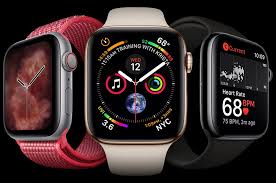
Apple has frequently promoted the health-monitoring capabilities of its smartwatch. The latest Watch version is packed with several health-centric apps and features. For example, Apple Watch Series 4 and further have the ECG app, which records the timing and strength of the electric signals, which make the heart beat.
The watch also comes with an app for fall detection. In case you fall down and are not responsive, then the app will automatically contact the emergency services. All Apple Watches come with heart rate monitors and Health application which showcase the user’s health profile along with their Medical ID.
WatchOS 6 smartwatches are equipped with the Noise app for monitoring the noise level of the surroundings.
Requirements
To monitor heart rate and use the Health app, one needs Watch Series 1 and newer. For utilizing the Noise application, ECG application, and fall detection feature, one needs Apple Watch Series 4 or newer.
Monitoring the Heart Rate
The Hearth Rate app comes inbuilt in Apple Watch. It can be used for monitoring the heart rate whenever you want. Launch the app, and you can see the current heart rate. To see more details, just tap the top left arrow.
Taking an Electrocardiogram
With the app, users can check their heart rhythm and get alerts in case of any irregularity. Launch the app on your iOS device and go to Health Data. After that, tap on the Heart. From the list of options, select Electrocardiogram and set it up.
For taking the ECG on the watch, simply launch the app and ensure that you are wearing on the same wrist used while setting it up. Press the Digital Crown and wait for the countdown to end. In half a minute for the results to get displayed. After that, tap on Done.
In order to get the best results, do the following:
  • Users need to place their arms on any table or lap when taking the recording. They need to be relaxed.
  • Ensure that the watch is snug on the wrist.
  • Ensure that the wrist and watch are both clean.
  • Keep the Watch Orientation in mind.
Check the Health Data
The Health app keeps a record of your health details. In order to set it up, launch the app on your iOS device and click the profile icon at the top right-hand corner.
You will now get a link that can be clicked to enter your Health Profile data such as gender, height, weight, date of birth, etc. Click on Medical ID and input the necessary details.
For viewing the data on the Apple Watch, open Settings, and click on Health.
If you want to share your Health information, then follow these steps:
  • Launch the Health app on your iPhone.
  • Click on Browse.
  • Select Heart.
  • Tap on Electrocardiograms.
  • Click on your ECG result chart.
  • Tap on this option: Export a PDF for your Doctor.
  • Hit the Share button for printing or sharing the PDF.
Using the Noise app
Loud noise can be extremely damaging. Noise app aims to monitor the sound of the surrounding and warns you if it exceeds the safe level. At first, users need to add their decibel threshold from their iOS device or smartwatch. Then they need to enable the option for Environmental Sound Measurements.
Here users can tweak the settings, and their watch shall notify them when the noise exceeds the preset level.
Setting up Cycle Tracking
In order to set it up on your iOS device, launch the Health app. After that, select the Browse option. From the list, tap on Cycle Tracking. Finally, tap on Get Started.
Fall Detection
With this feature, the smartwatch will know when you are moving. In case you fall, it shall wait for the user to respond to the alert. In case the user is not mobile and does not move, then the watch will automatically contact the emergency services. Follow the steps given below and turn the feature on:
  • First, you need to open the Watch application on the iPhone.
  • After that, go to the My Watch option located at the lower-left side of the screen.
  • Now, select Emergency SOS.
  • After scrolling down, tap on Fall Detection.
  • Ensure that it is turned on.
Making an emergency call
  • When the user falls and gets an alert, then they can slide a button for saying that they are okay.
  • For calling the emergency services, slide the bar towards the right on the smartwatch. In case you are fine, hit, I am okay.
  • Follow the guidelines from the operator.
  • For hanging up the call, tap the phone button.
  • When the confirmation prompt comes, tap on Yes.
Daisy Martin is an avid technical blogger, a magazine contributor, a publisher of guides at norton.com/setup and a professional cyber security analyst. Through her writing, she aims to educate people about the dangers and threats lurking in the digital world.

Sunday, June 16, 2019

How to Troubleshoot Apple Watch Not Connecting to iPhone Issue

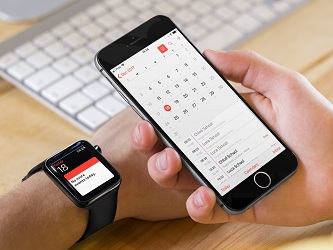
Apple Watch can do various things even without being connected to an iPhone. But to use its full features, you need to connect it to an iPhone. Simply Apple Watch is incomplete without an iPhone connection. If an iPhone is connected to the Apple Watch, it’s easy to perform every task that is difficult without connection. Unfortunately, connection issues arise sometimes. If you’re also facing any trouble with Apple Watch and iPhone connection then use these troubleshooting solutions.
iPhoneandAppleWatch.jpg
1.    Check whether the Apple Watch is connected to your iPhone
2.    Check the Bluetooth connection
3.    Check and turn off Airplane Mode
4.    Reboot your Apple Watch
5.    Reboot your iPhone
6.    Reset iPhone’s network settings
How to check if your Apple Watch is connected or not
If you haven’t received any notification for messages, calls, or other from a long time on your Apple Watch, then it is possible that the watch is not connected to your iPhone. You can check this with the following ways.
•    Check your Apple Watch screen; if there you see a red cross (X) it means the watch is disconnected.
•    Alternatively, you can check the connection status in the Control Panel by swiping up on the watch screen.
If the watch is disconnected, then connect it to your iPhone and check if it connects or not.
Check the Bluetooth connection
Make sure both devices are on and operational, if they are, then check the Bluetooth connection on both your Apple Watch and iPhone.
To check Bluetooth connection on iPhone:
1.    Access the Control Center by swiping up on the iPhone screen. If you’re using iPhone X or newer or iPad running on iOS 12 or afterward, then swipe down from the top section of the screen.
2.    Make sure the Bluetooth is turned on (Blue icon). If it is not, then tap on Bluetooth icon to enable.
Check and turn off Airplane Mode
Airplane mode disabled the Bluetooth in most of the devices. Make sure it isn’t on in your device. You can also try toggling Airplane to troubleshoot the Apple Watch not connecting to iPhone issue.
To check and toggle Airplane Mode:
1.    Bring up the Control Center.
2.    Make sure the Airplane mode is disabled (Grey icon).
3.    Click on the ‘Airplane Mode’ (Airplane) icon to disable or enable.
4.    Enable the Airplane mode, and wait for some seconds.
5.    Tap the icon again and disable it.
Now, try connecting your iPhone to the watch, continue troubleshooting until it connects.
Reboot your watch
Restarting is also helpful in various problems, try doing it.
1.    Press the ‘Side (Power)’ button of Apple Watch.
2.    Hold down the button until the power off menu appears.
3.    Select ‘Power Off’ from the top menu. This will shut down your Apple Watch.
4.    After some seconds of shutting down the watch, again press the ‘Side (Power)’ button and hold down until the Apple logo appears.
Once the watch restart successfully, try connecting to your iPhone.
Reboot your iPhone
If still, the watch doesn’t connect, try restarting your iPhone.
To reboot iPhone X or newer:
1.    Press the ‘Side and any Volume’ button together. Hold down the buttons until confirming slider appears on the screen.
2.    Move the confirming slider to shut down your iPhone.
3.    After a few seconds of shutting down your iPhone, again press the ‘Side (Power)’ button and hold down until the Apple logo appears.
To reboot iPhone 8 or older:
1.    Press the ‘Top (Power)’ button.
2.    Hold down the buttons until confirming slider appears on the screen.
3.    Move the confirming slider to shut down your iPhone.
4.    After shutting down, press the ‘Top (Power) button again.
Once the iPhone restarts successfully, try connecting to your iPhone.
Reset iPhone’s network settings
Lastly, reset your iPhone’s network settings, if nothing works.
1.    Open your iPhone’s settings.
2.    Open ‘General’ settings.
3.    Go to ‘Reset.’
4.    Then select ‘Reset Network Settings.’
5.    And complete resetting.
After resetting network settings, try connecting your iPhone to your Watch. These solutions will troubleshoot Apple Watch not connecting to iPhone issue.
Related article
Kellie Minton is a qualified IT engineer by education. After working in the IT sector for a decade, she began writing about it two years ago. She loves to write about emerging technology like www.office.com/setup.

Thursday, June 13, 2019

Apple Set To Rollout watchOS 6 With Some Brand New Features

A new watchOS 6 update is confirmed by Apple during the recent WWDC 2019 event, and inevitably this new update will introduce some exclusive features which would help an Apple Watch user to have a much more diverse usage and applicability of their Apple Watch.
apple watchos
Though every new update brings along some new and improved features to the Apple Watch, still the upcoming new watchOS 6 would enable users to explore numerous uses for their Apple Watch. Some such features are already available on developer beta and soon will be available for public use. To know about some of the exclusive new features for the upcoming Apple watchOS 6 update, refer to the list mentioned below.
Activity Trends of User
New watchOS 6 update has drastically improved on the Activity feature of the Apple Watch as users will now be able to access a new tab, namely Trends inside the Activity application. The trend feature comprises of three separate rings, which helps a user to know about their daily activity status. Mainly the three rings complete the circle on the basis of your regular exercise pattern of last 365 days in comparison to your past 90 days of activity record. This new Trends feature would enable an individual to ascertain their daily performance and activity record.
Tracking Cycle
Apple Watch has become an essential product in tracking day to day health data by maintaining a systematic record of the heartbeat, distance walked, and the amount of daily activity a user performs. But in addition to such diverse uses, Apple Watch will now also help women users in tracking their monthly cycles. The new cycle app would allow a user to maintain a record of when the period hits and note down the details of the flow with the additional option of including different symptoms like migraines. This allows the user to adjust to the period cycle as the app would send notifications before the next due date.
Dedicated Apple Store  
Apple Watch is finally set to include a dedicated Apple Store and users can not only search for their prefer app straight from their wrist, but users can also view and download some specific apps dedicated for Apple Watch. By introducing the Apple Store for the Apple Watch, users can now download, search, and install numerous apps which would tremendously improve the use of Apple Watch in general.
Accessing Independent Apps
With the new watchOS 6 update, users will be able to access numerous self-developed apps which would specifically focus on Apple Watch. This new feature would allow independent developers to make the Apple Watch interactions much more fun and exciting. Moreover, there is no requirement of pairing your iPhone for the working of such stand-alone applications so it would make the Apple Watch much more independent in usage.
Noise Detection
Once the watchOS 6 update becomes accessible, users will be able to convert their Apple Watch into a decibel reader. This would help an individual as their Apple Watch would transmit warning signals if you enter in a loud environment and the noise level could potently damage your ears. A notification message will be flashed to the user if the surrounding sounds are above 90 decibels, which is potently detrimental for the human body as per the World Health Organization.
Related article
Kellie minton is an avid technical blogger, a magazine contributor, a publisher of guides at mcafee.com/activate, and a professional cyber security analyst. Through her writing, she aims to educate people about the dangers and threats lurking in the digital world.

McAfee Vs. Kaspersky Internet Security

  McAfee and Kaspersky are well-known names in the antivirus circle. It’s not wrong to say that they can be considered giants in the online ...