Showing posts with label Xbox One. Show all posts

Monday, November 25, 2019

How to Use and Customize the Google Assistant on Xbox One

Microsoft has introduced the Google Assistant on Xbox One for the users. You can give commands to play, pause, or open apps and games to Google assistant or enabled home devices.

 It is also effortless to set up the Xbox One with Google Assistant. If you are excited to use it and want to Customize Google Assistant on Xbox One, then you are on the right post. Read through the blog and follow the instructions.
How to Customize the Google Assistant on Xbox One
If you want to customize the Google Assistant, then you can follow the provided steps:
  1. Sign in to Xbox One.
  2. Go to the Google Home app on the device.
  3. Click on +.
  4. Pressing the + option will add the device to the Google family.
  5. Select Set up the device on the top below the Add to home option.
  6. Click on Have something already set up option under Works with Google.
  7. Locate Xbox in the services list.
  8. Sign in the Microsoft account. It should be the same account that is connected to the Xbox One.
  9. Choose the consoles you like to control.
  10. Google will display all the consoles connected to the Microsoft account.
  11. Select the room you want to shift them to. Google Assistant will know what devices in your home, and this helps the user in keeping track of each Xbox.
  12. Choose Done.
  13. After completing the procedure, the users can use the benefits as all the consoles are added.
How to Use the Google Assistant on Xbox One
If you want to use the Google Assistant on Xbox One, then abide by the given steps:
System controls
Google Assistant will turn the console on and off automatically, and the user can give commands to start the console with commands like Hey Google turn on Xbox or Hey Google reboot Xbox.
Opening Games and Apps
The users can open the games or apps by using the voice command like Hey Google, open Gears 5, or Hey Google, open Netflix. You can also change TV channels by giving commands.
Volume Control
When opening Apps and Games, users can control the volume of the show by giving commands like Hey Google turn up or mute the sound of Xbox or Hey Google turn down the volume on Xbox.
Media controls
The users can also control the media in the middle of their App by giving commands like Hey Google, pause the app, or Hey Google, next.
Screen capturing
This is one of the coolest things Google assistant can do. The users can command the Google assistant to record clips or to take screenshots by giving commands like Hey Google, capture the screenshot on Xbox, and Hey Google, record on Xbox.
Microsoft and Google will add more features and commands in the future, but for now, these are decent features for everyone to use Google assistant daily.
Kellie Minton  is a self-professed security expert; he has been making the people aware of the security threats. His passion is to write about Cyber security, cryptography, malware, social engineering, internet and new media. He writes for Norton security products at norton.com/setup.

Tuesday, September 3, 2019

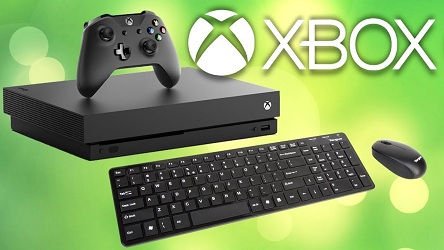
How to Connect and Play Games with Mouse and Keyboard on Xbox One

Have you ever thought about playing games on your Xbox console just like a PC, that is with Mouse and Keyboard. If you have played games on your computer, then might be more comfortable with these with your mouse and keyboard buttons than a controller. Playing games with an Xbox console could be handy, but not as flexible as this combination. Although, Xbox One allows to connect a USB keyboard to it, but not for gaming. You can only connect and use a USB keyboard for text input. Also, the console has limited support for the USB keyboards. Other than advantageous controlling, there could be several more reasons for playing with the keyboard and mouse combination. If you have these devices extra and tired of playing with the Xbox controller, then using them isn’t a bad plan.
xbox.jpg
Here is how to connect and play games with mouse and keyboard on Xbox One
Connecting mouse and keyboard to Xbox One with XIM Apex
XIM Apex is an adapter that allows you to connect mouse and keyboard with your console as a controller. XIM Apex changes the output signal of these devices to something that Xbox One uses and understand them as a controller. Although there are some other products such as Titan One, and CronusMax works the same. You can use them to play games with your mouse and keyboard, but the procedure for connecting with them will be different. Here is the start to end guide to connect and play games with mouse and keyboard on Xbox One.
  • Install the XIM Apex Manager app:
Firstly, you’ll need to install this app on your smartphone. XIM Apex Manager App can connect and communicate to the XIM Apex USB adapter over Bluetooth. The app will be required to set up the XIM Apex adapter. XIM Technologies, Inc has provided both iOS and Android version of the app on their respective store. On Android, you can download it from Google Play Store and App Store on iOS.
Connect and set up mouse and keyboard with XIM Apex adapter
  1. Take the adapter and connect it to your Xbox One console. Do not turn on the console before connecting the XIM Apex to it.
  2. After that, start your console.
  3. Now, take the mouse you want to use and connect it to the USB hub’s port 1. However, XIM Apex already has a hub to connect with multiple USB devices, but if your keyboard has an in-built hub, then you can also use it.
  4. Make sure to use the high-class USB 2.0 data cable instead of charge-only to connect the devices with the hub.
  5. Now, connect the keyboard to the USB hub’s port 2.
  6. Then attach the Xbox controller to the USB hub’s port 3. The USB hub must be connected to an Xbox controller all the time through a USB cable. Make sure to not turn on the connected controller before using the XIM Apex.
  7. After that, plug in the USB cable of hub into the USB port of XIM Apex adapter.
  8. Now, find a free USB port on your Xbox One console and insert the XIM Apex into it. The adapter will start flashing the different color lights when you start the console.
  9. Take the smartphone on which you’ve installed the XIM Apex Manager app and launch the app.
  10. Tap on the ‘Continue’ button on the XIM Apex Manager’s welcome screen.
  11. The XIM Apex’s license agreement will now appear on the screen, select ‘Agree’ to accept and continue.
  12. Now, tap on the ‘Download’ button that shows up. Doing so begins downloading the recent updates for the application.
  13. After it finishes, the app will start finding the XIM Apex adapter with the Bluetooth.
  14. Locate the pairing button on the XIM Apex adapter, it is at the center and surrounded by lights. Press it to pair with the XIM Apes Manager app.
  15. Once the app pairs with XIM Apex and connects to your console, it will show you a list of games on your smartphone.
  16. Find the game you want to play and tap on it.
  17. Then, tap on the top ‘Xbox’ icon in the app. The lights on XIM Apex will change with your command and its functioning.
  18. Now, on the next screen, use the adjusting buttons to set the sensitivity for aiming. Make sure to set it to the maximum. You’ll also need to set it to the maximum on your console.
  19. Now, configure the mouse and keyboard buttons and ‘Save’ your settings.
Now, you’re all set to go and enjoy your new controls.
Kellie Minton  arrived on the cyber security scene in the early 2000s when virus and malware were still new and slowly evolving. Her longtime affair with writing with an interest in the cybersecurity industry, combined with her IT degree, has contributed to experience several aspects of security suite industry such as blogging at www.norton.com/setup  .

McAfee Vs. Kaspersky Internet Security

  McAfee and Kaspersky are well-known names in the antivirus circle. It’s not wrong to say that they can be considered giants in the online ...